Getting started with Flow Ctrl
Flow Ctrl is a desk button for Wispr Flow dictation. It is a Cheap Yellow Display (an ESP32 with a 2.8" touchscreen) in a printed case that pairs with your Mac as a Bluetooth keyboard. Every button on it just sends a keyboard shortcut Wispr already understands — so there is nothing to install on the Mac, and if you unplug it, nothing changes.
This guide assumes the puck is built. If you are starting from parts, the WOODWERD CYD Case build guide comes first — board, printing, inserts, screws. This is the ten-minute version of what follows: what to set up once, then what each button is for.
1 · Set up once
Flash the firmware. Plug the board in over USB-C and either use the web flasher in Chrome
(esptool-js: 460800 baud, address 0x0,
file release/flow-ctrl-v0.9.7-cyd2usb-mac.bin), the Flash page, or, from a terminal:
pip install esptool
esptool.py --chip esp32 --port /dev/cu.usbserial-XXXX --baud 460800 write_flash 0x0 flow-ctrl-v0.9.7-cyd2usb-mac.bin
Later updates: flash flow-ctrl-v…-cyd2usb-mac-update.bin at 0x10000 (or use the Flash page) so the
board keeps its pairing.
The screen shows "Flow Ctrl · v0.9.7 · Mac" with the WOODWERD badge and the push-to-talk chord for four seconds, then comes up with an amber dot and "Pairing…". (Long-press the Flow Ctrl title in the top-left corner at any time to see that again, with the chord it sends and its Bluetooth address. Tap anywhere to close. The Forget pairing button there — two taps — is the fix if the Mac and the board ever disagree about the pairing.)
Pair it. System Settings → Bluetooth → Flow Ctrl → Connect. The dot turns green, the title reads "Flow Ctrl", and the buttons wake up. The Mac remembers it; from now on it reconnects on its own whenever the board is powered.
Point Wispr at it. Wispr Flow → Settings → General → Shortcuts → Push to talk → press Ctrl + Opt + T. That is the only setting Flow Ctrl needs. (If you would rather keep a different chord, the firmware's chord is a build flag — see the README.)
Optional — Transforms. If you want the second page, Wispr Flow → Settings → Transforms → create two custom transforms and give them the shortcuts Opt + 3 and Opt + 4. Suggested prompts are in the README. Prompt Engineer is built in and needs nothing.
On a Windows PC instead. Flash flow-ctrl-v0.9.7-cyd2usb-win.bin, or use the Windows button on the
Flash page (same board; the screen says
Alt/Ctrl instead of Opt/Cmd and Select all sends Ctrl+A). Pair in Settings → Bluetooth → Add
device. In Wispr Flow for Windows set push-to-talk to Ctrl + Alt + T — that is exactly what the
board's chord becomes on Windows. Check what the Windows app assigns to Transforms before relying on the
second page. The board bonds to one computer at a time: to move it from a Mac to a PC, forget it on the
Mac first, or the Mac will keep reconnecting to it.
Then put it where your hand rests when you are not typing. It is always on, always full brightness, and never sleeps — a button you have to wake up first is not a button.
2 · The Dictate page
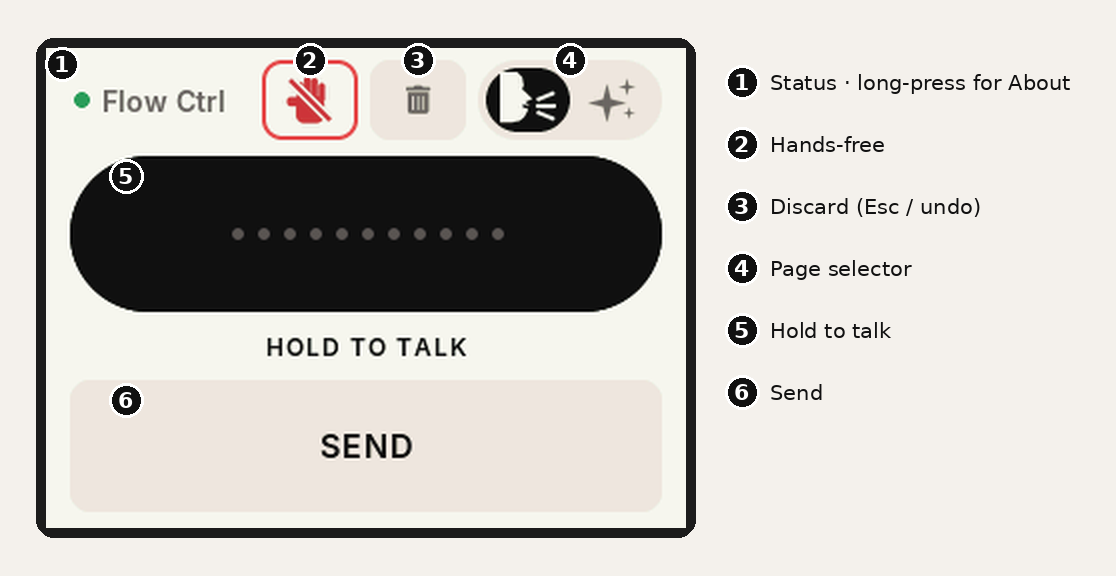
This is the page it wakes up on and the one you will live on.
- Status. The dot is green when the Mac is connected, amber while pairing, red during a hands-free session. Long-press the Flow Ctrl title for the About page.
- Hands-free. The red hand. One tap starts a session that runs until you stop it — for long dictation where holding a button for three minutes would be silly.
- Discard. The trash does the thing you would reach for: while a hands-free session is running
it sends
Escand Wispr cancels it, nothing pastes; any other time it sendsCmd+Z, which undoes the last paste and removes what you just dictated from the field. (A hold cannot be cancelled mid-way — Wispr starts transcribing the instant you let go — so after a hold, undo is the answer.) - Page selector. A lozenge with a black knob that slides between two icons — the talking head (Dictate) and the sparkles (Transform). It only changes what the screen shows. It never sends a key.
- Hold to talk. The big black bar, styled after Wispr's own Flow bar. Press and keep your finger down, say a sentence or two, let go. Wispr transcribes and pastes at wherever your cursor is. Dots at rest, white bars while you hold, and a ring around the bar so you know it is listening.
- Send. A Return key. When you dictate into a chat box or a Claude prompt, tap this once the words have appeared and it goes. It is a separate key on purpose: Wispr pastes a beat after you let go, and a Return fired too early would send an empty message.
3 · Hands-free, while it runs
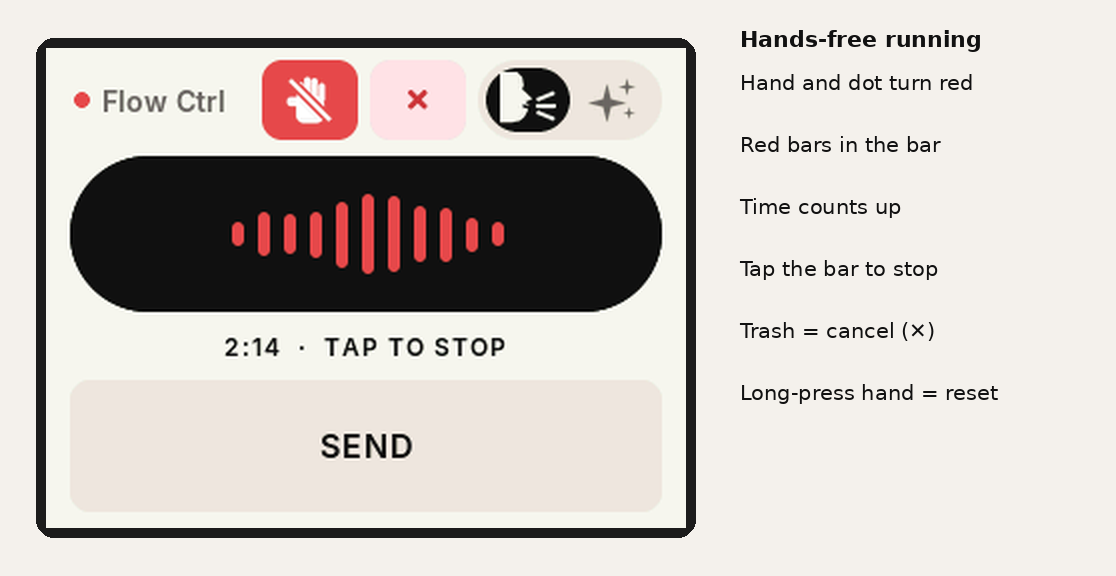
Tap the hand and it turns solid red, the dot turns red, the bars in the black bar turn red, and the line underneath counts the session up: 2:14 · TAP TO STOP.
- Talk. Pause. Think. Nothing times out on the button's side. While the session runs, Wispr keeps the words in its own bar at the bottom of the screen — nothing lands in your document until you stop. That is Wispr's hands-free design, not a fault.
- Tap the black bar (or the red hand again) to stop. Wispr transcribes and pastes everything you said as one block. The bar is the big target on purpose — stopping should never take aim.
- Discard — the trash has turned into a red ✕ — cancels the session without pasting. After it has pasted, the trash goes back to being undo.
- If you stopped Wispr from the Mac instead — clicked its bar, hit Esc on the keyboard — the button does not know, because nothing flows back from the Mac to it. Long-press the red hand to reset the button without sending anything.
4 · The Transform page
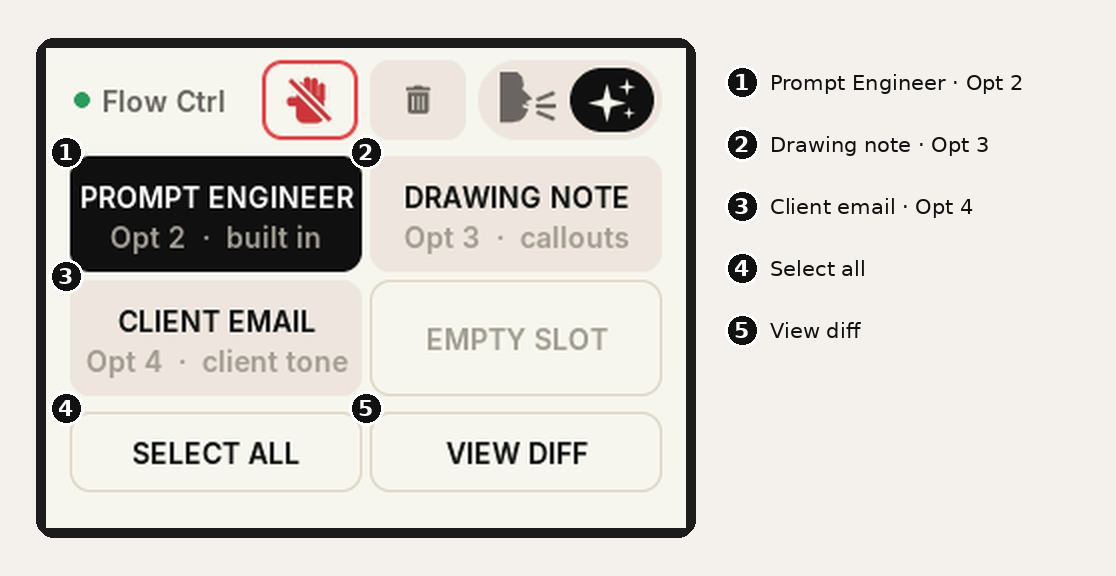
Wispr Transforms rewrite text you have selected on the Mac. The page fires them; it does not know what is selected, so the order is always select, then tap.
- Prompt Engineer — Wispr's built-in transform. Turns a rough spoken request into a well-structured prompt. This is the one that makes Flow Ctrl useful with Claude.
- Drawing note — custom. Rewrites what you said as terse construction-drawing callouts: material, size, finish, location. Fragments, uppercase, dimensions untouched.
- Client email — custom. Turns a spoken rough draft into a warm, concise client email that keeps every decision, dimension, price and date exactly as you said them.
- Select all —
Cmd+A. When you have just dictated into a prompt box, this selects it so the next tap has something to transform. - View diff —
Opt+O. Shows what the transform changed.
The fourth slot is empty on purpose; a transform earns a button when you notice you reach for it every
day. Adding one is a line in src/main.cpp.
5 · Three flows you will use
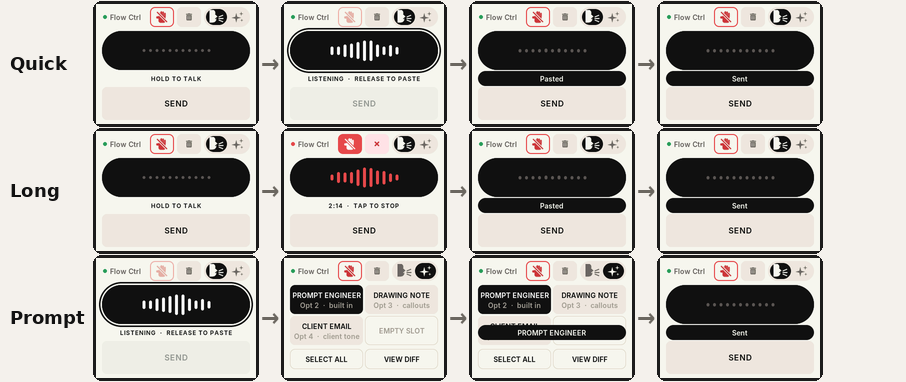
Quick dictation. Hold → talk → release → (Send, if it is a message). Most of the day is this.
Long dictation. Hand → talk as long as you like → tap the bar → Send. For a brief, a design rationale, a long reply. Everything arrives as one paste, so check the length limit of wherever it is landing before you dictate an essay into it.
A prompt for Claude. Hold and talk your rough idea straight into the prompt box → slide to Transform → Select all → Prompt Engineer → slide back → Send. Four taps and the thing Claude receives is better than what you said.
6 · When something does not work
| Symptom | Likely cause |
|---|---|
| Amber dot, "Pairing…" | Not connected. Pair in Bluetooth settings; if it was paired before, toggle Bluetooth on the Mac. |
| "Remove Flow Ctrl on the computer, then add it again" | The board and the Mac hold different pairing keys (a full flash at 0x0, or one with erase, does this — use the Flash page or the -update.bin for updates). The board has already dropped its copy; remove Flow Ctrl in the Mac's Bluetooth list and pair once more. You can also trigger this yourself: About page → Forget pairing (tap twice). |
| Keeps dropping back to "Pairing…" every minute or two | Firmware older than v0.9.5. Reflash — see Firmware & code for what changed. |
| Green dot, but nothing happens | Wispr's push-to-talk shortcut is not Ctrl+Opt+T, or Wispr is not running. |
| Works everywhere except Terminal / a password field | macOS Secure Keyboard Entry blocks Wispr there for every keyboard. Not a Flow Ctrl problem. |
| Hands-free starts but tapping the bar does not paste | Wispr missed the double-tap that starts the lock. Try again; if it is consistent, the tap gap is a constant in src/main.cpp. |
| Screen shows hands-free (red hand) but Wispr is idle | You stopped it from the Mac. Long-press the red hand. |
| Taps land off-target | The touch panel self-calibrates as you use it; a few presses toward each corner settles it. |
7 · Where to go next
- The README has the build flags, the code map, and the chord table.
- The WOODWERD CYD Case has the parts list, printing, inserts, assembly, the printable files and tolerances.
- Any other app with a keyboard shortcut can be driven the same way — change two constants.