Flow Ctrl — a push-to-talk button for Wispr Flow on the Cheap Yellow Display
An open-hardware project from WOODWERD LLC, a design group in Austin, Texas.
A dedicated desk button for Wispr Flow dictation, built on the ESP32-2432S028R "Cheap Yellow Display" (CYD). The board pairs with your Mac as a Bluetooth keyboard and sends the same keyboard shortcut you already use — so there is nothing to install on the computer, and nothing about your Wispr setup changes.
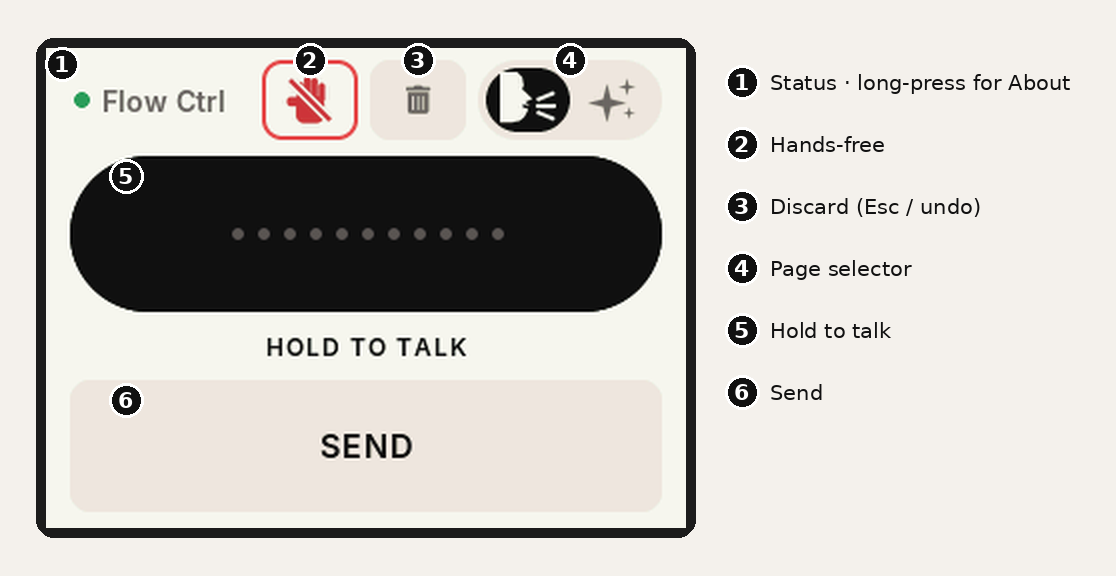
- Hold to talk — press and hold the big black bar, speak, let go: Wispr transcribes and pastes.
- Hands-free — tap the red hand once to lock in, talk for as long as you like, tap the bar to paste it all.
- Send — a Return key, so a dictated Claude prompt or chat message goes without touching the keyboard.
- Discard — the trash: cancels a running hands-free session (
Esc), or undoes the last paste (Cmd+Z) after a hold. - Transforms — a second page fires Wispr's AI rewrites (Prompt Engineer, plus your own) on selected text.
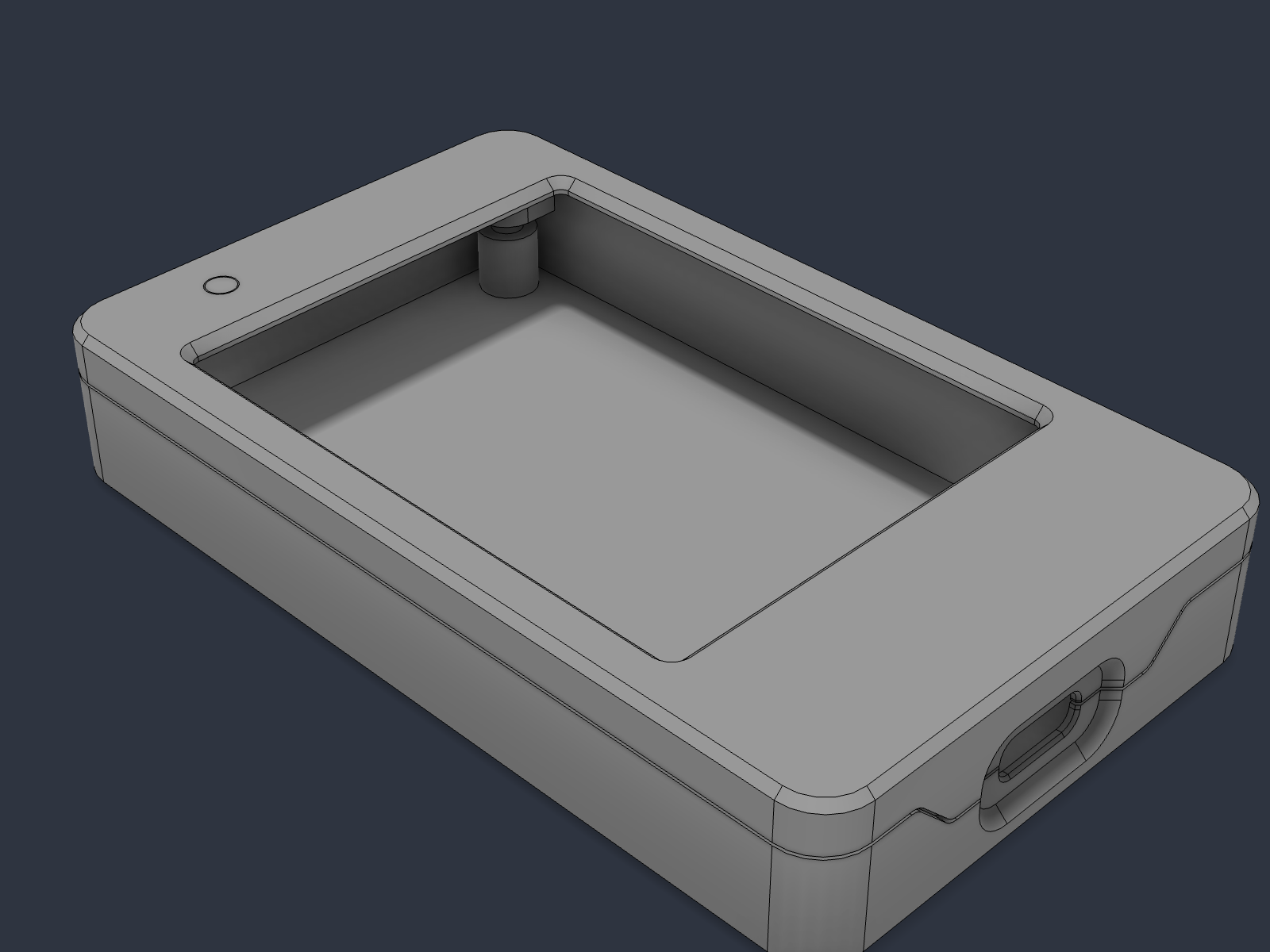
- Printed split case with only USB-C exposed: the WOODWERD CYD Case, shared by all WOODWERD CYD builds (STL/STEP, BOM, build guide).
New here? Build the WOODWERD CYD Case (parts, printing, inserts, assembly), then read the Getting Started guide (setup and every button, with annotated screens).
Unofficial. Not affiliated with or endorsed by Wispr. See THIRD_PARTY_NOTICES.md.
How it works
Wispr Flow's push-to-talk is a keyboard shortcut. A MacBook's Fn key is not a real keycode, so no
external device can send it — but any chord with a normal modifier can be sent by a Bluetooth HID
keyboard, which is what the ESP32 pretends to be. The firmware ships with Ctrl + Opt + T; set
Wispr's Push to talk shortcut to that (Settings → General → Shortcuts), or rebuild with your own chord.
| On the screen | What the CYD sends | What Wispr does |
|---|---|---|
| HOLD TO TALK (press and hold) | chord held down for as long as your finger is | push-to-talk; release = transcribe & paste |
| Hands-free (red hand, top row, tap) | chord tapped twice, 120 ms apart | Wispr's "double-tap push-to-talk to lock" gesture → hands-free session |
| Stop (tap the bar, or the hand again, while hands-free) | chord tapped once | ends the session, pastes |
| Hand (long-press, while hands-free) | nothing | resets the button's state only — use if you stopped Flow from the Mac |
| SEND | Return |
sends what was just pasted — a Claude prompt, a chat message. Tap it once the words have landed |
| Discard (trash, top row) — hands-free running | Esc |
cancels the session, nothing pastes |
| Discard — otherwise | Cmd+Z (Ctrl+Z on Windows) |
undoes the last paste: removes what the hold just dictated |
| Page selector (lozenge, top row) | nothing | slides between the Dictate and Transform pages |
There is no channel from Wispr back to the button, so the on-screen state is the button's best guess. If they get out of sync, long-press the red hand.
Quick start (no toolchain)
- Flash. Easiest: the Flash page in Chrome. Or grab
release/flow-ctrl-v0.9.7-cyd2usb-mac.bin(USB-C / 2-USB board, Mac) — or…-cyd2usb-win.binfor a Windows PC — or build thecydenv for the original micro-USB board. Either: - ESP Web Tools / esptool-js in Chrome or Edge — 460800 baud, address
0x0, or pip install esptoolthenesptool.py --chip esp32 --port /dev/cu.usbserial-XXXX --baud 460800 write_flash 0x0 flow-ctrl-v0.9.7-cyd2usb-mac.binUpdating a board that's already paired? Flash…-update.binat0x10000instead. The full image at0x0wipes the board's Bluetooth pairing and you'd have to pair again. (Hold BOOT while plugging in if the port doesn't show up. 921600 baud is unreliable on the CH340.)- Pair. System Settings → Bluetooth → "Flow Ctrl". The top-left dot turns green and the buttons enable. The bond is remembered and reconnects on power-up.
- Wispr Flow. Settings → General → Shortcuts → Push to talk → press
Ctrl + Opt + T. Wispr's hands-free lock follows the push-to-talk key automatically, so that's the only setting. - Talk.
Windows works the same way: pair in Settings → Bluetooth, and set Wispr Flow's push-to-talk to
Ctrl + Alt + T (the board sends the same keys; Windows just calls Opt "Alt"). Use the -win
image so the screen says Alt/Ctrl and Select all sends Ctrl+A rather than Win+A. Note the board
bonds to whichever computer pairs it; to move it between a Mac and a PC, forget it on the one you're
leaving.
Pairing gone weird? About page → Forget pairing (tap twice), then remove Flow Ctrl on the computer and add it again. The board also does this by itself if the computer's key stops matching.
Which firmware is on it? The version and chord show for four seconds at power-up; long-press the Flow Ctrl title (top-left) any time for the About page — version, build, chord, Bluetooth address.
If the chords do nothing in Terminal or a password field, that's macOS Secure Keyboard Entry — see Wispr's help article on it. It affects every keyboard, not just this one.
Page 2 — Transforms
The lozenge selector in the top row (talking head = Dictate, sparkles = Transform; a black knob slides to the active one) flips to a second page that fires Wispr's Transforms — AI rewrites
of whatever text is selected on the Mac. Buttons come from the XFORMS table at the top of main.cpp;
add a row, rebuild, and it appears in the next empty slot (four slots per page).
| Button | Sends | Set up in Wispr → Settings → Transforms |
|---|---|---|
| PROMPT ENGINEER | Opt+2 |
built in |
| DRAWING NOTE | Opt+3 |
custom: Rewrite as terse construction-drawing callouts: material, size, finish, location. Fragments, not sentences. Uppercase. Keep dimensions exact. |
| CLIENT EMAIL | Opt+4 |
custom: Rewrite as a warm, concise client email from a residential designer. Plain language, no jargon. Keep every decision, dimension, price and date exact. End with one clear next step. |
| Select all | Cmd+A |
— |
| View diff | Opt+O |
built in |
The Claude flow: dictate into the prompt box → Select all → PROMPT ENGINEER → back to DICTATE → SEND. The top row — hands-free hand, trash and the page selector — is shared by both pages, so you can see a hands-free session running (the hand and the dot turn red) and stop or discard it from either page. Switching is a tap, not a swipe, so a heavy finger on HOLD TO TALK can never turn into a page change.
Docs
- Case & parts — the WOODWERD CYD Case: bill of materials, which board to buy, printing, heat-set inserts, screws, assembly
- Flash it — one-click install from Chrome (on the docs site), or esptool
- Getting Started — setup, every button and its intent, the three flows, troubleshooting
- Firmware & code — build flags, code map, how to drive another app with it
- Bench test — the checklist every release has to pass
- Changelog
- Publishing checklist — how this reaches the CYD project list and the docs site
Case
Flow Ctrl uses housing v2 of the WOODWERD CYD Case: three parts, no supports, PETG, four M3 × 14 countersunk screws and four M3 × 4 mm heat-set inserts. Only the USB-C port is exposed; a clear light pipe carries the ambient-light sensor through the lid. The case lives in its own repository so every WOODWERD CYD firmware (Flow Ctrl, Media Ctrl, …) shares one set of files.
License
Firmware and documentation: © 2026 WOODWERD LLC, released under MIT (see LICENSE). Third-party components and fonts retain their
own licences — listed in THIRD_PARTY_NOTICES.md.