Box Ctrl
Set up GitHub · x0.1.7Why do this
Box Ctrl keeps your list in this browser. That's simple, but a browser can lose it: clearing your history, a new computer, or Safari tidying up after a week away can wipe it. And your list on the Mac isn't on your iPad.
Connect your own GitHub repo once and:
- Your list is safe. A copy lives on GitHub, not just in one browser.
- Every device has the same list. Change a box on the Mac and it's on the iPad a moment later.
- Nothing is ever really lost. GitHub keeps every earlier version, so a mistake can be undone.
- It's yours. The repo is in your own GitHub account. WOODWERD never sees it, and there's nothing to pay.
It's optional. Without it Box Ctrl works exactly as before. Setting it up takes about 10 minutes, once.
How it fits together
A repo is a folder on GitHub. You make one, and it holds files for both Box Ctrl and Tool Ctrl. You don't need a repo for each tool.
A key, which GitHub calls a token, lets Box Ctrl write to that one folder and nothing else in your account. You make one key, and both tools can use it.
After that, each browser you use connects once. From then on, saving to GitHub happens by itself.
What you need
- An email address, for a free GitHub account.
- A computer, for the setup. Making the repo and key is easier on a big screen.
- About 10 minutes.
- Somewhere safe to keep the key for a moment, such as your password manager or Notes.
1. A GitHub account
Already have one? Sign in and skip to step 2.
- Go to github.com/signup.
- Enter your email, a password and a username. Your username becomes part of your repo's name, such as your-name/ctrl-data.
- Choose the free plan if asked. It's all you need.
2. Your private repo
- Go to github.com/new. You can also click + at the top right of any GitHub page, then New repository.
- Owner: leave it as your username.
- Repository name: type ctrl-data, or any name you like with letters, numbers and dashes.
- Visibility: choose Private. This matters: your list holds your logo and owner line, and Box Ctrl refuses a public repo.
- Leave everything else as it is. You don't need a README; Box Ctrl writes one.
- Click Create repository.
GitHub now shows a page of setup instructions for programmers. You can ignore all of it. Note the name at the top, such as your-name/ctrl-data. That's what you type into Box Ctrl.
3. Your key
GitHub calls this a fine-grained personal access token. It's a long password that only opens the one repo you choose.
- Go to github.com/settings/personal-access-tokens/new. You can also get there from your picture at the top right, then Settings, then Developer settings at the bottom of the left side, then Personal access tokens, then Fine-grained tokens, then Generate new token.
- Token name: something you'll recognise, such as Ctrl tools.
- Expiration: GitHub makes keys run out. Pick a date about a year away. When it runs out, Box Ctrl tells you, and you make a new one the same way.
- Resource owner: leave it as your username.
- Repository access: choose Only select repositories, then pick ctrl-data from the list.
- Permissions: under Repository permissions, find Contents and set it to Read and write. GitHub adds Metadata, read only, by itself. Leave every other permission as No access.
- Click Generate token.
- Copy the key now. It starts with github_pat_. GitHub shows it once and never again. Paste it into your password manager or a note until step 4.
4. Connect Box Ctrl
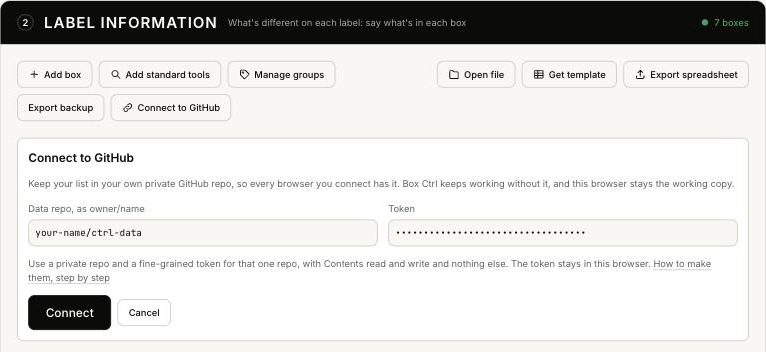
- Open Box Ctrl. In Label Information, press Connect to GitHub.
- Data repo: type your repo's name with your username, such as your-name/ctrl-data.
- Token: paste the key from step 3.
- Press Connect.
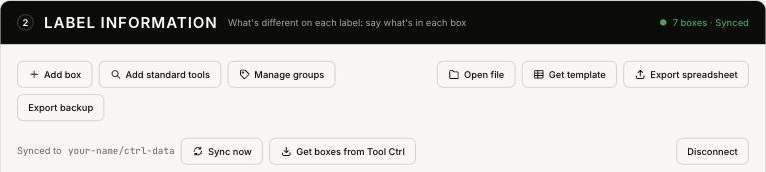
Box Ctrl checks the repo is private, saves your list to it, and shows a new row with the repo's name. The header of Label Information now ends in Synced.
If the repo already has a Box Ctrl list, from another device, Box Ctrl asks which list to keep before anything changes.
5. Tool Ctrl, if you use it
Use the same repo and the same key. In Tool Ctrl, connect to GitHub with them. Tool Ctrl writes tool-ctrl.json beside Box Ctrl's files.
If Tool Ctrl is connected first, in the same browser, Box Ctrl's Connect panel offers Use Tool Ctrl's repo, and you don't have to paste anything.
Then, in Box Ctrl, Get boxes from Tool Ctrl brings your boxes and what's in them across, without exporting a spreadsheet. It shows what's new and changed before anything changes, and never brings serial numbers, warranty details or notes.
More devices
Each browser connects on its own, once. On your iPad or another computer, open Box Ctrl, press Connect to GitHub, and enter the same repo name and key. Your list arrives.
Your key isn't saved anywhere but the browser you typed it into, which is why you keep it in your password manager. If you've lost it, make a new one in step 3. The old one keeps working until it runs out, unless you delete it on GitHub.
Day to day
There's nothing to do. Every change saves in the browser at once and goes to GitHub a few seconds later. Label Information's header tells you where things stand:
| Synced | GitHub has everything. |
|---|---|
| Saving | A change is on its way. |
| Offline · 3 unsent | No internet. Changes wait here and go when you're back. |
| Needs attention | Something needs you. A strip below says what. |
If you changed the same thing on two devices before either synced, Box Ctrl shows both and asks which to keep.
If something goes wrong
| GitHub refused the token | The key ran out or was deleted. Make a new one in step 3, then press Enter a new token. Nothing in Box Ctrl is lost. |
|---|---|
| Repo not found | Check the name is your username, a slash, and the repo name, such as your-name/ctrl-data. Check the key was made for that repo. |
| The token can't do that | The key is missing write access. Edit it on GitHub and set Contents to Read and write. |
| This repo is public | On GitHub, open the repo, then Settings, and at the bottom change its visibility to Private. |
| Read only | The key can read but not write. Set Contents to Read and write. |
To stop syncing, press Disconnect. The key is deleted from this browser, and your list stays here and on GitHub.
Words used here
| GitHub | A website for keeping files, with a history of every change. Free for this. |
|---|---|
| Repo | Short for repository: a folder on GitHub. Yours is private, so only you can see it. |
| Token, or key | A long password that only opens what you chose when you made it. |
| Sync | Box Ctrl and GitHub swapping changes, so both have the same list. |
| Commit | One saved change on GitHub. Each sync makes one, which is how GitHub keeps the history. |
Privacy: Box Ctrl talks only to GitHub, only for your repo, and only after you connect. The key never goes in a file, a link or an export. See the guide for the rest.